
Managing Multiple Profiles Within One Portal Account
If you manage someone else’s medical care, like a child, an elderly person or any other person under your care, and have a portal account under your name, you can ask the clinic to add their profile to your portal account.
In order to manage other profiles than your own from your portal account, you must communicate with your clinic:
Call or contact your clinic and ask them to add the profile of the person under your care to your portal account.
If that person is over the age of consent for treatment, the clinic will need their approval.
Determine with the clinic which tabs are necessary to manage the profile of the person under your care: booking appointments, viewing bills, viewing documents, and viewing and sending messages.
Once the profiles are added to your portal account, follow the steps below to learn how to manage them:
Log into your clinic’s Patient Portal.
From your portal account, access your Dashboard.
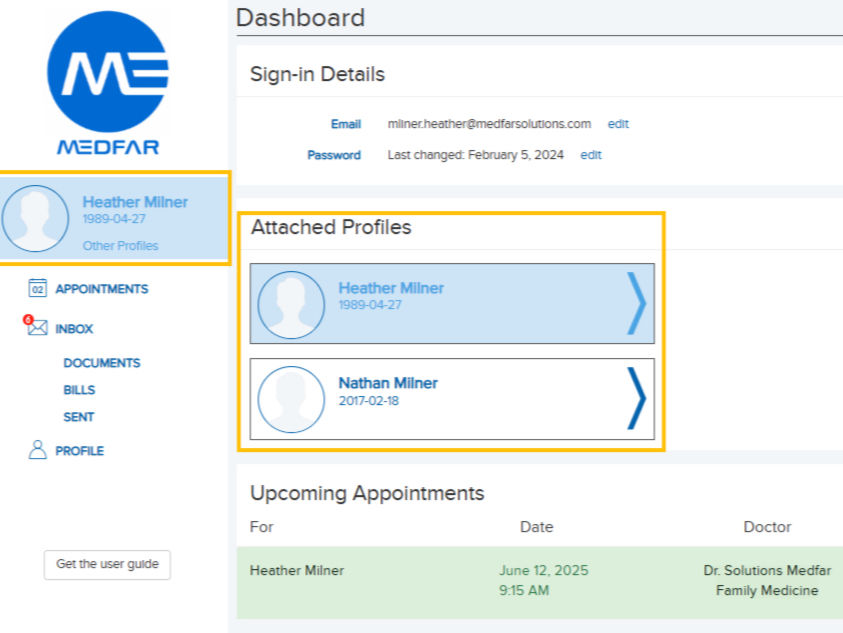
Click on your name in the left margin to access your Dashboard.
Find all the profiles to which you have access to in the Attached Profiles section.
Select the profile for which you want to take actions.
a. Once the profile is selected, its name will appear in the left margin.
b. From now on, managing appointments, and managing the inbox will affect this profile only.
On a mobile device such as a phone, please tap on the three striped on the top left to open the menu slider.